Новичкам
Download Rust Legacy directly from Steam (No LegionRust or FShield)
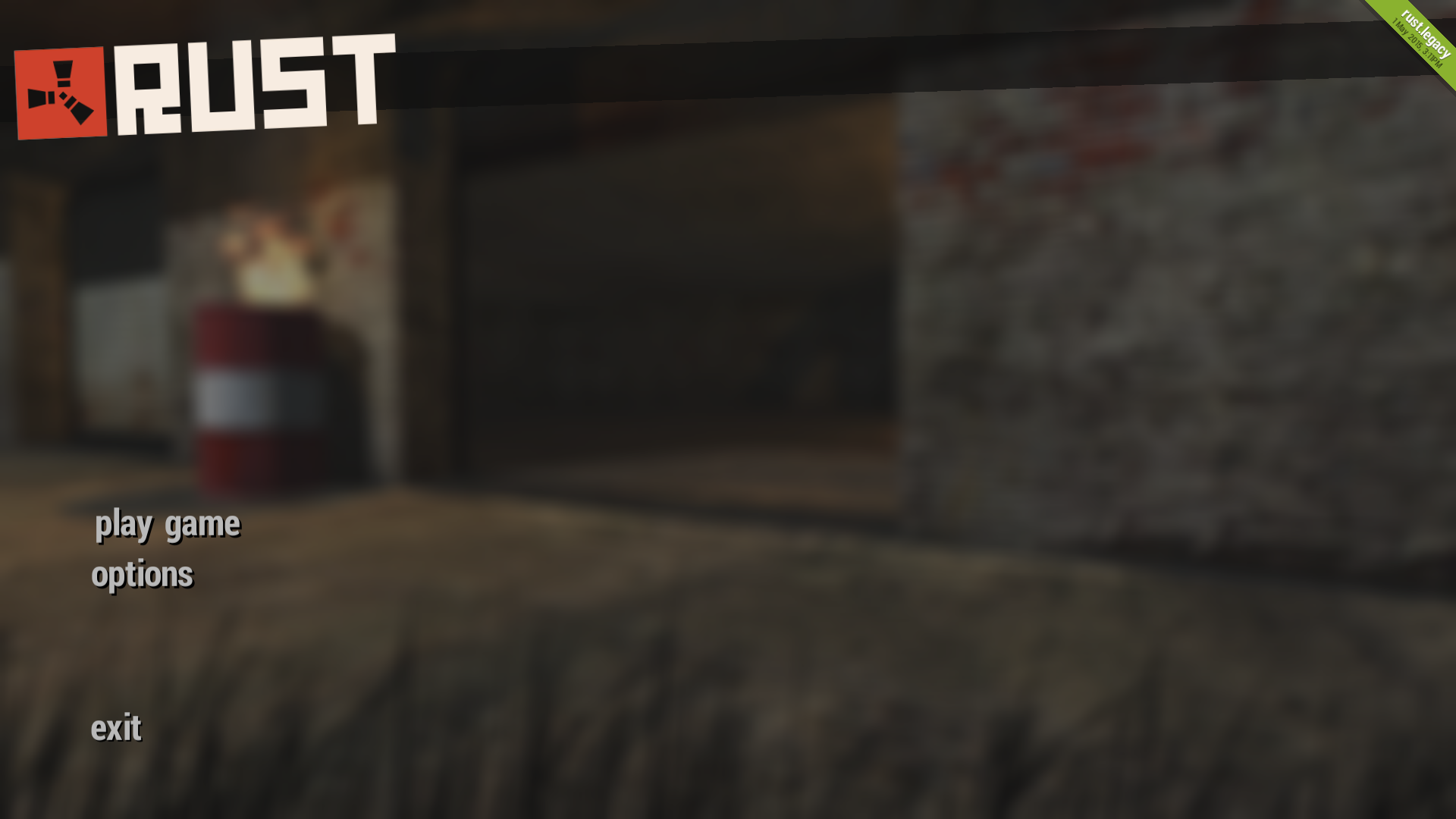
This guide will show you how to download Rust Legacy directly from Steam, so you don't have to download sketchy modified versions from the internet.
Client
Note: Recently, some people have been having issues with the Steam Console, in which case you can use DepotDownloader with the appropriate command below. If you are using DepotDownloader instead of the Steam Console, don't forget to fill out your Steam username, as Steam needs to check ownership of the game in order to download the client files. The application will walk you through the steps for authentication once you run the command.
Otherwise, you will need to open the Steam Console by either copying and pasting steam://open/console into your browser URL or adding -console to your Steam launch options. Copy and paste the command for your platform from below into the text field at the bottom of the new tab that opened in Steam.
Windows
Steam Console
OSX
Steam Console
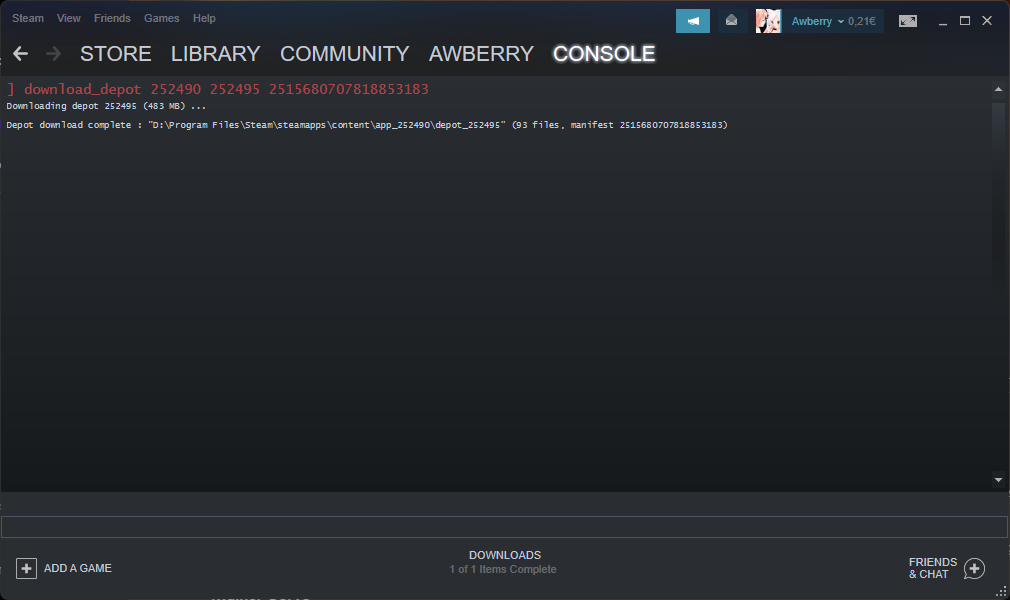
The console does not provide any feedback on the progress of your download, however, just keep the tab open and wait for it to say "Depot download complete : "C:\Program Files (x86)\Steam\steamapps\content\app_252490\depot_252495" (93 files, manifest 2515680707818853183)". You can then find the files in the directory as listed in the response, in this example C:\Program Files (x86)\Steam\steamapps\content\app_252490\depot_25249. However, the output folder depends on whether you have downloaded the Windows or OSX version, as well as where Steam is installed.
Open the folder and create a new text file called steam_appid.txt with the following content:
This will skip Rust's 'launched from Steam' check, allowing you to launch the legacy Rust executable directly. If all steps have been completed successfully, you can start Rust Legacy by simply opening rust.exe. You are also free to move the directory or rename it however you please. Sorry, OSX users, I'm not sure how this works for you!
You can find a list of client commands in my other guide.
Otherwise, you will need to open the Steam Console by either copying and pasting steam://open/console into your browser URL or adding -console to your Steam launch options. Copy and paste the command for your platform from below into the text field at the bottom of the new tab that opened in Steam.
Windows
Steam Console
download_depot 252490 252495 2515680707818853183DepotDownloader -app 252490 -depot 252495 -manifest 2515680707818853183 -beta legacy -username <username>OSX
Steam Console
download_depot 252490 252495 5266712403981068795DepotDownloader -app 252490 -depot 252492 -manifest 5266712403981068795 -beta legacy -username <username>The console does not provide any feedback on the progress of your download, however, just keep the tab open and wait for it to say "Depot download complete : "C:\Program Files (x86)\Steam\steamapps\content\app_252490\depot_252495" (93 files, manifest 2515680707818853183)". You can then find the files in the directory as listed in the response, in this example C:\Program Files (x86)\Steam\steamapps\content\app_252490\depot_25249. However, the output folder depends on whether you have downloaded the Windows or OSX version, as well as where Steam is installed.
Open the folder and create a new text file called steam_appid.txt with the following content:
252490This will skip Rust's 'launched from Steam' check, allowing you to launch the legacy Rust executable directly. If all steps have been completed successfully, you can start Rust Legacy by simply opening rust.exe. You are also free to move the directory or rename it however you please. Sorry, OSX users, I'm not sure how this works for you!
You can find a list of client commands in my other guide.
Dedicated Server
Note: The dedicated server files are only available for Windows.
The dedicated server files unfortunately cannot be downloaded through the Steam Console that we used before, so instead you will have to download SteamCMD.
Extract the ZIP file and place steamcmd.exe somewhere where you can easily find it. For example your downloads folder. I recommend using Windows Terminal as it will allow you to right click the directory where you have extracted SteamCMD to and then select Open in Terminal, however it does not matter if you use Windows Terminal for this or not. Now run the following set of commands.
SteamCMD should now start downloading the files for the dedicated server. Just like the instructions on how to download the client SteamCMD will not give any feedback on the progress of the download. Wait for it to say something along the lines of "Depot download complete : "C:\Users\You\Downloads\steamapps\content\app_258550\depot_258551" (99 files, manifest 3861806673622469917)". You can then find the server files in the directory specified in that output, in this example C:\Users\You\Downloads\steamapps\content\app_258550\depot_258551.
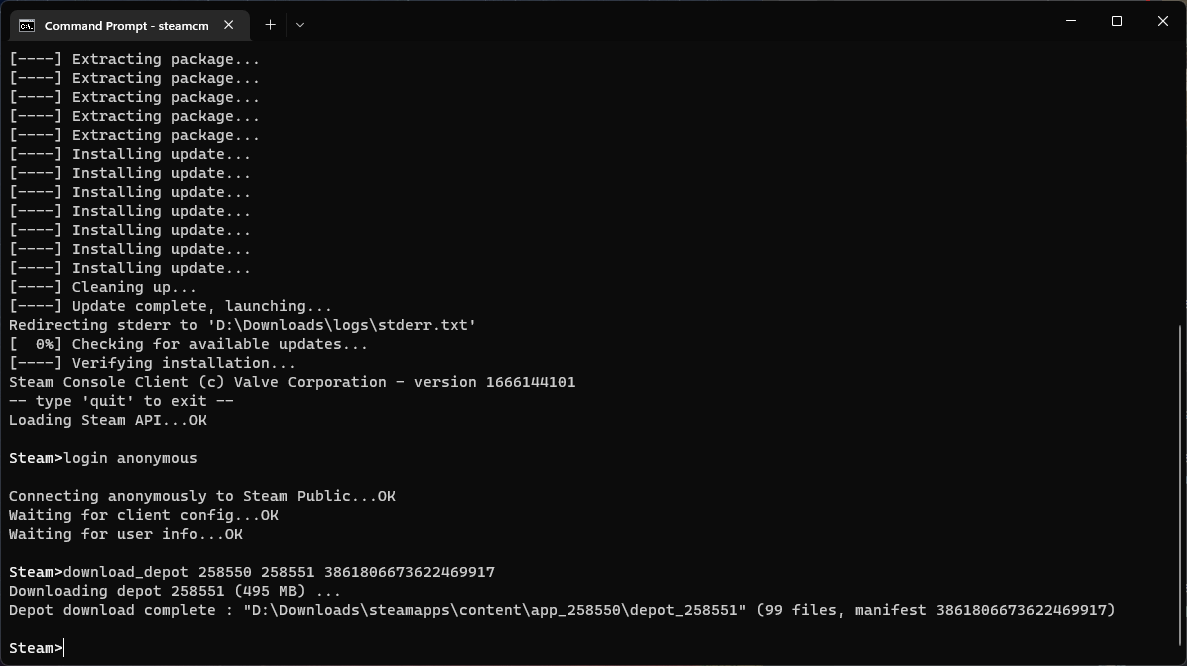
Open the directory as indicated by SteamCMD and run rust_server.exe. This will start the server locally. This guide will not go into detail on how to setup a dedicated server, however if you want your friends to be able to connect to your server you must first port forward port 28015.
You can find a list of server and admin commands in my other guide.
The dedicated server files unfortunately cannot be downloaded through the Steam Console that we used before, so instead you will have to download SteamCMD.
Extract the ZIP file and place steamcmd.exe somewhere where you can easily find it. For example your downloads folder. I recommend using Windows Terminal as it will allow you to right click the directory where you have extracted SteamCMD to and then select Open in Terminal, however it does not matter if you use Windows Terminal for this or not. Now run the following set of commands.
steamcmd
login anonymous
download_depot 258550 258551 3861806673622469917
SteamCMD should now start downloading the files for the dedicated server. Just like the instructions on how to download the client SteamCMD will not give any feedback on the progress of the download. Wait for it to say something along the lines of "Depot download complete : "C:\Users\You\Downloads\steamapps\content\app_258550\depot_258551" (99 files, manifest 3861806673622469917)". You can then find the server files in the directory specified in that output, in this example C:\Users\You\Downloads\steamapps\content\app_258550\depot_258551.
Open the directory as indicated by SteamCMD and run rust_server.exe. This will start the server locally. This guide will not go into detail on how to setup a dedicated server, however if you want your friends to be able to connect to your server you must first port forward port 28015.
You can find a list of server and admin commands in my other guide.
Комментарии 0
Войди через Discord, чтобы комментировать